
X-Guard works together with Samsung to make alarming as simple, fast and reliable as possible. By using rugged Samsung smartphones with physical buttons, an alarm can be activated instantly in emergency situations. This solution fully aligns with the mission of X-Guard: Everyone, Everywhere, Protected.
The latest Samsung XCover models
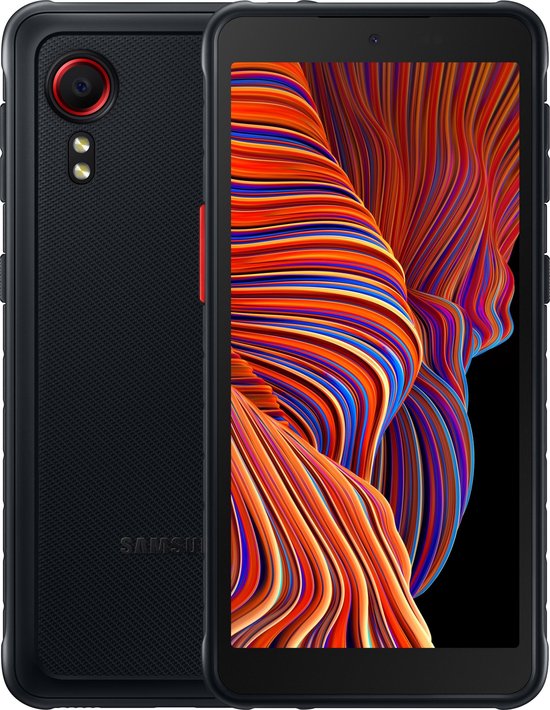
The X-Guard alarm solution uses the latest generation of Samsung XCover devices. These smartphones are designed for professional use and harsh working environments.
The currently supported models are:
-
Samsung Galaxy XCover7 Pro
-
Samsung Galaxy XCover 7
These devices are dustproof, waterproof, shock-resistant and suitable for intensive daily use. Thanks to the programmable physical buttons, they are highly suitable as personal alarm solutions.
Setting the XCover button and/or side button as an alarm button
Alarming with Samsung Galaxy XCover 7 and XCover7 Pro
With the Samsung Galaxy XCover 7 and the Galaxy XCover7 Pro, you can configure the XCover button and/or the side button as an alarm button for the X-Guard Alarm app. By using these physical buttons, you can quickly and reliably trigger an alarm in emergency situations.
You configure the XCover button through a combination of the Samsung device settings and the settings within the X-Guard Alarm app. Which method is most suitable depends on how you use the device.
We recommend:
-
Method 1 if you use the device daily as a normal smartphone
-
Method 2 if you use the device (almost) exclusively for the X-Guard Alarm app
Method 1 – Suitable for daily use
With this method, the XCover button is directly linked to sending an alarm. This is a fast and practical solution when you also use the device for calling, messaging or other apps.
Step 1: X-Guard Alarm app settings
-
Open the X-Guard Alarm app on your smartphone.
-
Tap the round button with three horizontal lines in the top left corner.
-
Select Change settings.
-
Go to App behavior.
-
Scroll to the section Hardware alarm button.
-
Enable Use XCover button for alarms.
Step 2: Samsung device settings
-
Open Settings by swiping down from the top of the screen.
-
Tap the gear icon in the top right corner.
-
Scroll to Advanced features.
-
Select XCover button.
-
Enable Use XCover button with app.
-
Choose Alarm to link the button to the X-Guard Alarm app.
Important notes for method 1
When you use the phone daily, this method works reliably. However, if you use the device exclusively as an alarm device, the XCover button may not always respond immediately. This can occur in the following situations:
-
Android devices may enter sleep mode when they are not used for a long period. After waking up, it is advisable to open the X-Guard Alarm app once to check whether the button still works.
-
When the device has been completely switched off, the Alarm app must be opened again to reactivate the XCover button.
Method 2 – Suitable for (almost) exclusive alarm use
If you mainly or exclusively use the XCover button for the X-Guard Alarm app, X-Guard recommends having the button professionally configured via Samsung Knox Suite. With this method, the XCover button works reliably at all times, even if the device has been inactive for a long period.
With this configuration, the device is specifically set up for alarm use, without requiring manual actions by the user.
If you would like to use this method, please contact X-Guard so we can arrange this for you.
If you purchase preconfigured Samsung Galaxy XCover 7 or XCover7 Pro devices from X-Guard, they can be delivered including Knox Suite. This allows you to alarm immediately and reliably using the XCover button, fully in line with our mission: Everyone, Everywhere, Protected.
Tip: Configuring the side button
In addition to the XCover button, you can also configure the side button on the right side of the device according to your preferences. For example, you can set it so that the X-Guard Alarm app opens automatically when you press the side button twice.
Setting up the side button
-
Open Settings by swiping down from the top of the screen.
-
Tap the gear icon in the top right corner.
-
Go to Advanced features.
-
Select Side button.
-
Adjust the settings here to your personal preference.
With the right combination of device, settings and configuration, X-Guard ensures that you can always request help quickly when it is needed — anytime, anywhere.